Most system failures are not sudden. Whether it’s a drive dropping out, a disk running hot, or an SSD nearing the end of its lifespan, the signs are almost always there if you’re paying attention. The challenge is not collecting the data; it’s acting on it in time.
For anyone managing a homelab, workstation, or server, configuring alerts for hardware health is one of the most effective ways to prevent downtime and data loss. This post explains what to monitor, how to set alerts properly, and how to reduce alert noise.
Monitoring vs. Alerting #
Logging metrics is useful, but alerting turns data into action. Think of it this way:
- Monitoring/logging is passive: it captures everything for later review
- Alerting is active: it interrupts you when something needs attention
Both are important but without alerting, you’ll only discover failures after they’ve already caused damage.
Why Set Hardware Alerts #
Monitoring tracks data, but alerts make that data useful. Without alerts, you might miss the early signs of failure:
- A drive quietly begins reallocating sectors
- An SSD disconnects and goes unnoticed
- A disk overheats and silently shortens its own lifespan
Well-defined alerts give you a chance to intervene before a problem becomes critical.
What to Alert On #
SMART Metrics for Storage Drives #
Most hard drives and SSDs expose S.M.A.R.T. (Self‑Monitoring, Analysis and Reporting Technology) attributes. A few of these are particularly important for alerting:
| Attribute | Alert Threshold | Reason |
|---|---|---|
Reallocated Sectors (reallocated_sector_ct) |
> 0 | Indicates the drive is remapping bad sectors |
Pending Sectors (current_pending_sectors) |
> 0 | Shows unstable sectors awaiting reallocation |
Uncorrectable Errors (uncorrectable_error_cnt) |
> 0 | Failed reads or writes that could not be recovered |
Available Spare or Available Reserved Space (available_reservd_space) |
< 10% | How many backup sectors are remaining |
| Endurance Used | > 80-90% | The drive is reaching the manufacturer rated write limit |
| Media/Data Integrity Errors | > 0/s | A steady increase could signal deteriorating drive health |
Backblaze reports that over 76% of failed drives had non-zero values in one or more of these SMART attributes1.
Temperature Thresholds #
Field data and manufacturer specs inform these safe operating temperatures:
- HDDs: Temperatures above 40 °C correlate with rising failure rates. A 5 °C rise above 40 °C can increase failure rates by about 30%, and sustained temps near 55 °C may double annual failure rates2.
- SSDs: Most SSDs operate safely up to 70 °C. Sustained temps over 60 °C may lead to throttling or accelerated wear3.
| Drive Type | Warning | Critical | Notes |
|---|---|---|---|
| HDD | 50 °C | 55 °C | Higher temps increase mechanical wear and failure rates |
| SSD | 60 °C | 70 °C | May throttle or degrade if sustained above 70 °C |
How to Configure Effective Alerts #
Use Actionable Thresholds #
SMART metrics rising above zero signal early risk. Actionable thresholds are specific values where failure becomes likely, based on vendor data or real-world patterns. For example, a Reallocated Sector Count above zero or a rising Pending Sector Count should trigger alerts. These thresholds filter noise and prompt timely action.
Minimize Alert Fatigue #
Critical and recovery thresholds prevent alert flapping and improve signal quality. Instead of alerting every time a value crosses a single line, use two:
- Critical threshold: the value above (or below) which an alert is triggered
- Recovery threshold: the value below (or above) which the alert is cleared
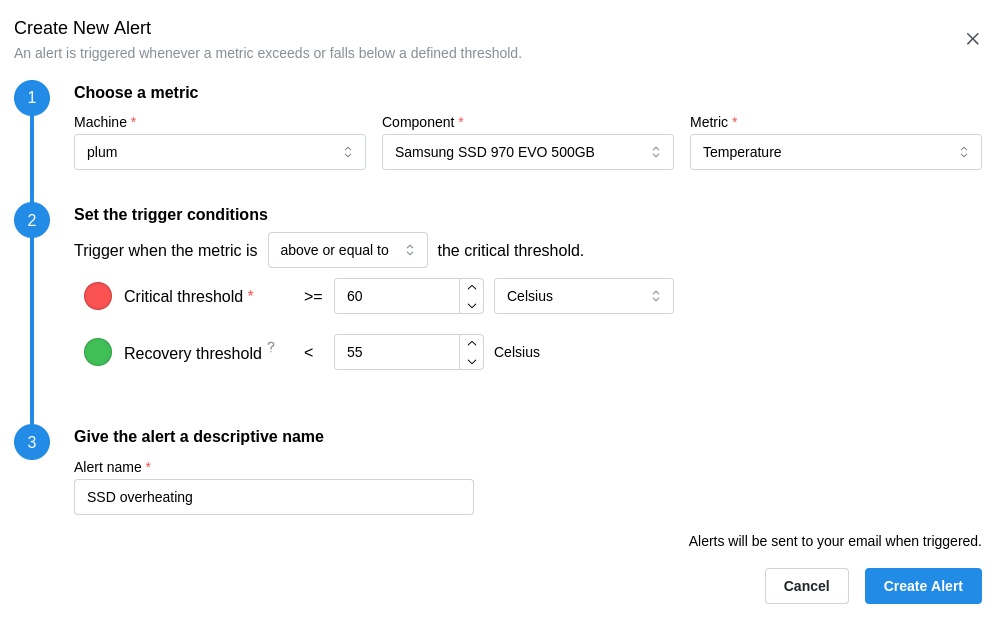
This hysteresis avoids repeated alerts during small fluctuations. If dual thresholds aren’t supported, pick a threshold that detects real problems while ignoring brief or minor spikes, minimizing false positives.
Tools to Help #
Tools like smartmontools, Zabbix, and open-source monitoring stacks offer granular control but require setup. For a simpler alternative, Sentinowl provides:
- A lightweight desktop agent for Windows and macOS
- Automatic monitoring of SMART metrics, and temperature
- Email alerts on threshold violations
- A web console to manage and view machine health from anywhere
Hardware rarely fails without warning. Alerting on SMART metrics, temperature extremes, and device availability provides practical early warnings to safeguard your data. Set sensible thresholds, reduce noise, and ensure alerts prompt meaningful action.
The best time to set up alerts was before your last drive failure. The next best time is now.
-
Backblaze. “SMART Stats That Matter.” https://www.backblaze.com/blog/hard-drive-smart-stats/ ↩︎
-
Data Center Dynamics. “Effects of High Temperatures on Hard Drives.” https://www.datacenterdynamics.com/en/opinions/the-effects-of-high-temperatures-on-hard-drives/ ↩︎
-
Samsung. “870 EVO SATA SSD Specifications (0–70 °C).” https://semiconductor.samsung.com/consumer-storage/internal-ssd/870evo/ ↩︎